Steps for terminating fiber optic cable using epoxyTo begin, strip the cable down to the bare fiber using an appropriate fiber stripper such as the FiberOpticx Fiber Stripper. After you have prepared the end of the cable you may begin to mix the epoxy resin and hardener together and load it into a syringe, unless of course you are using pre-loaded epoxy syringes, which are premixed and kept frozen until use. Now, from the syringe you must inject the epoxy directly into the connector ferrule.Once you have your connector properly prepared with epoxy, you are ready to insert the fiber cable so that the cable is seated inside of the connector wall and the bare fiber core sticks out about a half an inch from the front of the ferrule. At this point, if your cable is jacketed, you will want to use a crimping tool such as the Premier Master Crimp Tool to secure the connector to the jacket and strength members of the cable. Two crimps may be required to accomplish this properly.The next step in the process is allowing the epoxy to cure. Place the connected end into a curing holder to ensure that the end of the fiber is not damaged while curing. Now place the cable and curing holder into a curing oven. To avoid “wicking” while curing with a conventional oven, situate the connector so that the end is facing down. This positioning will ensure that the epoxy does not come out of the back side of the connector and compromise the strength member of the cable. Refer to the documentation of your specific epoxy for accurate curing times and temperatures.Having sufficiently cured the epoxy you are now ready to move on to the next step, cleaving the excess protruding fiber core. You will want to cleave the fiber with a fiber cleaver tool such as the FiberOpticx Economy Fiber Cleaver, as close to the ferrule tip as possible while avoiding any sort of twisting motion. Once cleaved, it is important that you properly dispose of the fiber clipping. A regular piece of tape will do just fine at retaining your fiber debris. If you do not properly dispose of all fiber pieces they could easily end up in your skin or even in somebody’s eye or respiratory system. A short strand of fiber can cause more damage than you would at first imagine.With the excess fiber cleaved and properly disposed of, you may begin the task of polishing the fiber end to a smooth finish. Using either fiber polishing film or a fiber polishing tool you will effectively remove any excess epoxy from the ferrule tip and buff out any imperfections on the face of the fiber. Without a smooth fiber surface any light passing through is subject to loss. The idea is to start with a coarse grit and work your way to a very fine grit film.If you are satisfied with your polished finish then you may move on to the cleaning of the ferrule and fiber tip. With a lint-free wipe dipped in 99% reagent-grade alcohol, gently wipe the surface area of the ferrule and fiber tip and immediately wipe them dry with another dry lint-free wipe. You may optionally use a can of compressed air to finish the process.Your connectorized cable is now complete. To ensure good standards, however, it is wise to inspect the tip with a 100x to 200x microscope such as the Fiber Inspection Microscrope. Finally, test your cable with an optical fiber testing tool for insertion loss and return loss where needed.
How to Terminate Fiber Optic Cable
Showing posts with label cable. Show all posts
Showing posts with label cable. Show all posts
Tuesday, September 9, 2008


Monday, June 2, 2008
How to Make CAT5e Patch Cables
Below is a small portion of the ComputerCableStore.com Guide "How to Make CAT5e Patch Cables". Please visit the ComputerCableStore.com to find the full artical.

Step 1: Before we start building a patch cable you will need to cut a length of stranded CAT5e. When cutting the length you should make sure to measure. Nothing is worse than the patch cable you just built being an inch too short for your application. After cutting the desired length we will start building our cable by stripping back approximately 1 inch of the jacket. We use Ideal's 45-165 Coaxial Stripper for this purpose. When striping back the jacket make sure that the depth of your stripper is set deep enough to cut the jacket but not so deep that it nicks the conductors. If you do nick the conductors while stripping the cable, the cable may work fine at first, but after time the conductors will break, or even worse, begin to short out.
Step 2: Now that we have the jacket stripped back we'll want to separate and straighten the pairs. We'll start by pulling the first pair and the last pair to their respective sides (Orange to the left and Brown to the right). Untwist these pairs making sure not to untwist the cable any further than you've stripped back the jacket. Now we'll split the green pair. Pull the white/green conductor to the left and the green conductor to the right. This leaves you with the blue pair in the middle. Untwist the blue taking care to ensure that the white/blue conductor is on the left and the blue conductor on the right.Note: Normally, it would be unmentionable to untwist the CAT5e pairs, except when building patch cables. It would be almost impossible to insert the conductors into the proper connector locations without untwisting. (Keep in mind you want to keep as much of the twist of each pair intact in order to meet performance standards.)

Step 3: Now that we've separated and straightened the pairs we need to arrange the conductors in the proper order according to which wiring standard you are using. For this example we will be wiring via the 568-B standard (most common in patch cables). Please consult the pin-out for the proper color codes. After you have the wires arranged, place them tightly together as show in the picture to the right. Once this is done, verify that the wires are still in the proper order and continue to step 4.
Step 4: Now we need to trim the conductors down to fit into the RJ45 connector. While trimming, make sure you make a nice clean cut at a 90 degree angle about 1/2 of an inch from the end of the jacket. If you fail to make a straight cut, some of the conductors may not reach the connector contacts. If you cut the conductors too short, again they will not make contact. If you leave the conductors too long, when crimping the connector, the jacketing will not be gripped leaving the strain on the conductors. This is not a good situation! For proper trimming, hold the wires securely just at the end of the jacket as shown in the picture to the left. Be sure to keep the conductors in the proper order.
Below is a small portion of the ComputerCableStore.com Guide "How to Make CAT5e Patch Cables". Please visit the ComputerCableStore.com to find the full artical.
We will discuss Materials needed, cable Preparation, as well as connector Termination. The first step to start building patch cables is ordering the correct materials. The first and most important material will be the cable we'll be using. CAT5e is available in a variety of different types: StrandedStranded is primarily used for building patch cables. The core of the conductors is comprised of many strands of copper so that it can be flexed repeatedly without the copper cores of the conductors breaking. SolidSolid CAT 5e is primarily used for in wall/permanent applications. The copper cores of the conductors are comprised of one single solid strand of copper. This allows the cable to carry signals over longer distances but due to the fact that  it has solid copper conductors it can not be flexed too many times without the copper cores breaking. PlenumPlenum is primarily used for in wall/permanent applications where the local building codes require that plenum cable be used. Plenum cable is essentially the same as solid except the jacket is comprised of a PVC Teflon mix. This plenum jacket on is a low smoke/flame retardant jacket that reduces the amount of toxic fumes that are released into air when the jacket is burned. Stranded is best when building patch cords. The flexible stranded cores will hold up best against the daily abuse that these cables tend to endure. We carry Stranded Category5e in a variety of colors to suite your particular needs.
it has solid copper conductors it can not be flexed too many times without the copper cores breaking. PlenumPlenum is primarily used for in wall/permanent applications where the local building codes require that plenum cable be used. Plenum cable is essentially the same as solid except the jacket is comprised of a PVC Teflon mix. This plenum jacket on is a low smoke/flame retardant jacket that reduces the amount of toxic fumes that are released into air when the jacket is burned. Stranded is best when building patch cords. The flexible stranded cores will hold up best against the daily abuse that these cables tend to endure. We carry Stranded Category5e in a variety of colors to suite your particular needs. Step 1: Before we start building a patch cable you will need to cut a length of stranded CAT5e.
When cutting the length you should make sure to measure. Nothing is worse than the patch cable you just built being an inch too short for your application. After cutting the desired length we will start building our cable by stripping back approximately 1 inch of the jacket. We use Ideal's 45-165 Coaxial Stripper for this purpose. When striping back the jacket make sure that the depth of your stripper is set deep enough to cut the jacket but not so deep that it nicks the conductors. If you do nick the conductors while stripping the cable, the cable may work fine at first, but after time the conductors will break, or even worse, begin to short out.Step 2: Now that we have the jacket stripped back we'll want to separate and straighten the
pairs. We'll start by pulling the first pair and the last pair to their respective sides (Orange to the left and Brown to the right). Untwist these pairs making sure not to untwist the cable any further than you've stripped back the jacket. Now we'll split the green pair. Pull the white/green conductor to the left and the green conductor to the right. This leaves you with the blue pair in the middle. Untwist the blue taking care to ensure that the white/blue conductor is on the left and the blue conductor on the right.Note: Normally, it would be unmentionable to untwist the CAT5e pairs, except when building patch cables. It would be almost impossible to insert the conductors into the proper connector locations without untwisting. (Keep in mind you want to keep as much of the twist of each pair intact in order to meet performance standards.)Step 3: Now that we've separated and straightened the pairs we need to arrange the conductors in the proper order according to which wiring standard you are using. For this example we will be wiring via the 568-B standard (most common in patch cables). Please consult the pin-out for the proper color codes. After you have the wires arranged, place them tightly together as show in the picture to the right. Once this is done, verify that the wires are still in the proper order and continue to step 4.
Step 4: Now we need to trim the conductors down to fit into the RJ45 connector. While
trimming, make sure you make a nice clean cut at a 90 degree angle about 1/2 of an inch from the end of the jacket. If you fail to make a straight cut, some of the conductors may not reach the connector contacts. If you cut the conductors too short, again they will not make contact. If you leave the conductors too long, when crimping the connector, the jacketing will not be gripped leaving the strain on the conductors. This is not a good situation! For proper trimming, hold the wires securely just at the end of the jacket as shown in the picture to the left. Be sure to keep the conductors in the proper order.Friday, May 16, 2008
Erico CADDY Fasteners now at the ComputerCableStore.com


The ComputerCableStore.com now stocks a full line of Erico CADDY® Electrical Fixings, Fasteners and Supports for Datacomm Applications. Erico CADDY® Fasteners are UL® Listed and ISO9001:2000 CertifiedWith their official registration
 and full compliance with ISO 9001:2000Certification, and their UL Listing,ERICO® is continually striving to exceed industry standards in everyaspect of our business.
Below is Just a Small Sample of the Items Stock At the
 ComputerCableStore.com. Erico products have always worked well for the ComputerCableStore.com and our Customers. We are one of the few places online that sell Erico Products in less than full box quantities, making it easy for you to order only what you need to get the job done. As always if you don't see the exact Fixings, Fasteners or Supports for your applicaiton feel free to contact the ComputerCableStore.com.
Caddy Fasteners - Datacomm
CADDY Angle Brackets
CADDY CABLECAT - Adjustable Cable Support
CADDY CABLECAT - Wide Base Cable Support
CADDY CABLECAT Base Components
CADDY CABLECAT Pulley
CADDY CABLECAT Vertical Backbone Cable Support
CADDY CAT TRAX Continuous Cable Support System
CADDY CAT-CM Cable Support System
CADDY Low Voltage Mounting Bracket - New Construction
CADDY Mille-Tie™
CADDY Plain Threaded And Wood Screw Bridle Rings
Caddy Fasteners - Electrical
Acoustical
Beam/Purlin
CADDY SPEED LINK
Ceiling Partitions
Conduit/Cable
Drywall
Hangers
Miscellaneous Components
Pipe & Equipment Supports
Stud Wall
Eristrut Strut and Accessories
Strut Fasteners
Friday, March 28, 2008
DVI-I to DVI-D Cable or DVI-D to DVI-D Cable?
Maybe I can clarify a little. DVI-A (Analog) and DVI-D (Digital) both use the same connector but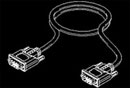 diffrent pins to transmit the signal. A DVI-I cable is a DVI cable with both the analog and digital pins. (so if you plug it into an analog device it will function as a DVI-A cable, vis versa if you plug it into a digital device it will function as a DVI-D cable). DVI-A and SVGA are one and the same, just a diffrent connector type. Most video cards (if not all at this point) have DVI-I connectors on them giving you the choice to use either analog or digital (you choose by pluging in either an analog or digital cable). This leaves most people
 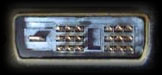 thining a DVI-I cable will be the right cable since it does everything, but in reality it doesn't always work this way. Lots of Digital devices will not leave the pin holes for the DVI-A connection (I assume this is to make sure the user uses the proper cable). So while in theory a DVI-I should work, in real life it will not. This is why we reccomend customers buy the proper cable for the application rather than a "one
 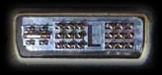 size" fits all. Hope this clears up some confusion. You can always take a look at http://www.dvihdmicables.com/ - Lots of good info there. DVI-D to DVI-D is the cable to use.
diffrent pins to transmit the signal. A DVI-I cable is a DVI cable with both the analog and digital pins. (so if you plug it into an analog device it will function as a DVI-A cable, vis versa if you plug it into a digital device it will function as a DVI-D cable). DVI-A and SVGA are one and the same, just a diffrent connector type. Most video cards (if not all at this point) have DVI-I connectors on them giving you the choice to use either analog or digital (you choose by pluging in either an analog or digital cable). This leaves most people thining a DVI-I cable will be the right cable since it does everything, but in reality it doesn't always work this way. Lots of Digital devices will not leave the pin holes for the DVI-A connection (I assume this is to make sure the user uses the proper cable). So while in theory a DVI-I should work, in real life it will not. This is why we reccomend customers buy the proper cable for the application rather than a "one size" fits all. Hope this clears up some confusion. You can always take a look at http://www.dvihdmicables.com/ - Lots of good info there. DVI-D to DVI-D is the cable to use.Single Link or Dual Link DVI Cable
Most people know that DVI-D cables two in two flavors. Single Link and Dual Link, but most 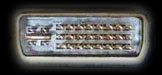 don't have any idea what the difference is so I'll start there. Single and Dual link cables are exactly the same with the exception that the Dual link cable has twice the pins to transmit data on. Single link can support bandwidths of 25-165 MHz while dual link can support bandwidths up to 330 MHz So at this point we can see Dual Link cables can transmit twice as much data, but what good does this do you? Most people have the common misconception that more bandwidth means a better cable, but that is not true by any means (especially with DVI, you want to get the RIGHT cable for the application, not the one with the higher price tag, which most people associate as better). This is actually a way to figure out which cable you need. You will start with the target resolution, in this case the customer expects to use 2016 X 1680 and we will assume at 60Hz (pretty much standard). Now that we know the desired resolution we need to figure
 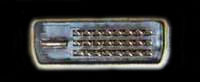 out how much bandwidth is required. This is actually simpler than most people think. Horizontal Resolution times Vertical resolution times Frequency will result in the required bandwidth. So in this case; 2016 x 1680 x 60Hz = 203,212,800.00 Hz or (203MHz) Bandwidth Required As you can see this is very high resolution, and it requires a lot of bandwidth. So this customer needs a dual link cable since we know if the resolution require more than 165MHz you need a dual link. On
 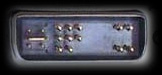 the hand let’s take a look at a more common resolution that people think they NEED a dual link cable for. 1600 x 1200 x 60Hz = 115,200,000 Hz (115MHz) Bandwidth Required Single Link will work here. 1920 x 1080 x 60 Hz (1080p HDTV Resolution) = 124,416,000 (124 MHz) Bandwidth Required. Single Link will work here too! Here you can see even the most fancy HDTV you can buy only require Single Link! Despite what some people think. What I find more interesting is that the refresh rate really requires some bandwidth. Lets revisit one of the above resolutions again but change the refresh rate to one that is more common with PC's 1600 x 1200 x 75 Hz = 144,000,000 (144MHz). Believe it or not this requires a Dual Link cable as well. So next time you go to order a DVI-D cable and are not sure which you need (single or dual link) just remember. Horizontal Resolution times Vertical Resolution times Refresh Rate = required Bandwidth.
don't have any idea what the difference is so I'll start there. Single and Dual link cables are exactly the same with the exception that the Dual link cable has twice the pins to transmit data on. Single link can support bandwidths of 25-165 MHz while dual link can support bandwidths up to 330 MHz So at this point we can see Dual Link cables can transmit twice as much data, but what good does this do you? Most people have the common misconception that more bandwidth means a better cable, but that is not true by any means (especially with DVI, you want to get the RIGHT cable for the application, not the one with the higher price tag, which most people associate as better). This is actually a way to figure out which cable you need. You will start with the target resolution, in this case the customer expects to use 2016 X 1680 and we will assume at 60Hz (pretty much standard). Now that we know the desired resolution we need to figure out how much bandwidth is required. This is actually simpler than most people think. Horizontal Resolution times Vertical resolution times Frequency will result in the required bandwidth. So in this case; 2016 x 1680 x 60Hz = 203,212,800.00 Hz or (203MHz) Bandwidth Required As you can see this is very high resolution, and it requires a lot of bandwidth. So this customer needs a dual link cable since we know if the resolution require more than 165MHz you need a dual link. On the hand let’s take a look at a more common resolution that people think they NEED a dual link cable for. 1600 x 1200 x 60Hz = 115,200,000 Hz (115MHz) Bandwidth Required Single Link will work here. 1920 x 1080 x 60 Hz (1080p HDTV Resolution) = 124,416,000 (124 MHz) Bandwidth Required. Single Link will work here too! Here you can see even the most fancy HDTV you can buy only require Single Link! Despite what some people think. What I find more interesting is that the refresh rate really requires some bandwidth. Lets revisit one of the above resolutions again but change the refresh rate to one that is more common with PC's 1600 x 1200 x 75 Hz = 144,000,000 (144MHz). Believe it or not this requires a Dual Link cable as well. So next time you go to order a DVI-D cable and are not sure which you need (single or dual link) just remember. Horizontal Resolution times Vertical Resolution times Refresh Rate = required Bandwidth.DVI-I Dual Link to HDMI?
Customer Question - "Hello. I'm trying to connect my LCD HDTV to my computer, so that I can use the TV as my monitor. The problem I'm having is figuring out what kind of cable I need. I  know I need the HDMI to go into my TV, but I can't seem to find a cable that has DVI-I Dual Link on the other end. Do I need to link or is that optional? I'm kind of confused . I'm using DVD-I Dual Link going into my computer now from my LCD monitor." This is a very common customer question. While it may seem quite confusing the answer is rather simple. When the video card manufacturers produce video cards they want to make sure the video card will work with as many displays as possible. Since there are such a wide variety of displays availble now days most video cards ship with a DVI-I connection. This DVI-I (intergrated both analog and digital) connection will allow you to connect a analog SVGA (with adapter) or analog DVI-A cable to the port to support most analog monitor types. The DVI-I connection also allows you connect digital devices using the DVI-d cable or HDMI (with adapter). The DVI-D to HDMI connection is always a single link connection. So while you may have a DVI-I connector on the video you really need a DVI-D Single link to HDMI or DVI-D Cable to connect your pc to your HDTV via a HDMI or DVI port.
know I need the HDMI to go into my TV, but I can't seem to find a cable that has DVI-I Dual Link on the other end. Do I need to link or is that optional? I'm kind of confused . I'm using DVD-I Dual Link going into my computer now from my LCD monitor." This is a very common customer question. While it may seem quite confusing the answer is rather simple. When the video card manufacturers produce video cards they want to make sure the video card will work with as many displays as possible. Since there are such a wide variety of displays availble now days most video cards ship with a DVI-I connection. This DVI-I (intergrated both analog and digital) connection will allow you to connect a analog SVGA (with adapter) or analog DVI-A cable to the port to support most analog monitor types. The DVI-I connection also allows you connect digital devices using the DVI-d cable or HDMI (with adapter). The DVI-D to HDMI connection is always a single link connection. So while you may have a DVI-I connector on the video you really need a DVI-D Single link to HDMI or DVI-D Cable to connect your pc to your HDTV via a HDMI or DVI port.
High Quality HDMI cables - Prices Drastically Reduced
The ComputerCableStore.com has drastically reduced the price of it's high quality HDMI cables . HDMI (High-Definition Multimedia Interface) cables transfer digital audio and video signals between compatible components, like HDTV tuners and HDTV-ready TVs. With HDMI, uncompressed multichannel digital audio and high-definition video can both be sent via a single connection. -Eliminates unnecessary signal conversions. -Supports standard, enhanced, or high-definition
 video at 24 bits/pixel, 165MHz max clock frequency. -Supports up to 8 channel digital audio on a single cable eliminating costly A/D signal conversions. -Bi-directional control signal transfer. -5 Gbps bandwidth, 55% spared for future expansion. -Simple, user-friendly connector. -Per HDMI standard, HDTV sent as 16x9 & SDTV as 4x3 over 30 AWG 100 ohm, .5 amp, 500 VAC DWV double shielded cable. 8-HDMI-001M - 1 Meter HDMI Audio/Video Cable - Was $14.95 Now $7.85 8-HDMI-002M - 2 Meter HDMI Audio/Video Cable - Was $15.95 Now $8.85 8-HDMI-003M - 3 Meter HDMI Audio/Video Cable - Was $16.95 Now $9.85 8-HDMI-005M - 5 Meter HDMI Audio/Video Cable - Was $22.95 Now $19.85
. HDMI (High-Definition Multimedia Interface) cables transfer digital audio and video signals between compatible components, like HDTV tuners and HDTV-ready TVs. With HDMI, uncompressed multichannel digital audio and high-definition video can both be sent via a single connection. -Eliminates unnecessary signal conversions. -Supports standard, enhanced, or high-definition video at 24 bits/pixel, 165MHz max clock frequency. -Supports up to 8 channel digital audio on a single cable eliminating costly A/D signal conversions. -Bi-directional control signal transfer. -5 Gbps bandwidth, 55% spared for future expansion. -Simple, user-friendly connector. -Per HDMI standard, HDTV sent as 16x9 & SDTV as 4x3 over 30 AWG 100 ohm, .5 amp, 500 VAC DWV double shielded cable. 8-HDMI-001M - 1 Meter HDMI Audio/Video Cable - Was $14.95 Now $7.85 8-HDMI-002M - 2 Meter HDMI Audio/Video Cable - Was $15.95 Now $8.85 8-HDMI-003M - 3 Meter HDMI Audio/Video Cable - Was $16.95 Now $9.85 8-HDMI-005M - 5 Meter HDMI Audio/Video Cable - Was $22.95 Now $19.85
Fiber Optic Cables, Adapters, Couplers and Testers
Here at the ComputerCableStore.com we have spent the last week  completely remodeling our entire line of fiber optic products and accessories. Fiber Optic Patch Cables -Retail Prices Reduced -Very Aggressive Volume Discounts -Full Selection (10Gig,62.5/126,50/125) -Lifetime Warranty Added -Rhos Compliant Fiber Optic Couplers -Add Full Line of Fiber Optic Couplers Fiber Optic Media Converters -Very Competitive Pricing -Volume Pricing Available -Multimode and
 Single Mode Available Optical Wavelength Laboratories Fiber Optic Testers -Full Selection -Top Quality Fiber Optic Testers -PDF Brochures Posted -Rhos Compliant Optical Cable Corporation Bulk Fiber Optic Cable -Full Selection Including Indoor/Outdoor -Easily Order Pre-Terminated
completely remodeling our entire line of fiber optic products and accessories. Fiber Optic Patch Cables -Retail Prices Reduced -Very Aggressive Volume Discounts -Full Selection (10Gig,62.5/126,50/125) -Lifetime Warranty Added -Rhos Compliant Fiber Optic Couplers -Add Full Line of Fiber Optic Couplers Fiber Optic Media Converters -Very Competitive Pricing -Volume Pricing Available -Multimode and Single Mode Available Optical Wavelength Laboratories Fiber Optic Testers -Full Selection -Top Quality Fiber Optic Testers -PDF Brochures Posted -Rhos Compliant Optical Cable Corporation Bulk Fiber Optic Cable -Full Selection Including Indoor/Outdoor -Easily Order Pre-TerminatedCAT6 Solid Sheilded STP Cable Now in Stock
The ComputerCableStore.com now stocks Bulk CAT6 Solid Sheilded STP Cable in a variety of  Colors. CAT6 Shielded Cable - Solid PVC Black Blue Gray Green White Yellow The ComputerCableStore.com 1000 FT CAT6 Sheilded Solid PVC Cable - Black is ideal for voice, data, video and security communications medium for your network installation where emi/RFI interference may be a concern. Wiring your home, home office, office or even a entire college campus, we hhave the
  right cable for you. Our bulk 550Mhz sheilded CAT6 cable is available in a wide selection of colors to help assist with network organizing and identification. ROHS compliant and UL Listed, the ComputerCableStore.com has the quality bulk cabling you need! 4-pair Shielded Twisted Pair (STP) Exceeds Cat6 Specifications PVC Jacket High-Density Polyethylene Insulation Ul Listed ROHS Compliant Lifetime Warranty
Colors. CAT6 Shielded Cable - Solid PVC Black Blue Gray Green White Yellow The ComputerCableStore.com 1000 FT CAT6 Sheilded Solid PVC Cable - Black is ideal for voice, data, video and security communications medium for your network installation where emi/RFI interference may be a concern. Wiring your home, home office, office or even a entire college campus, we hhave the right cable for you. Our bulk 550Mhz sheilded CAT6 cable is available in a wide selection of colors to help assist with network organizing and identification. ROHS compliant and UL Listed, the ComputerCableStore.com has the quality bulk cabling you need! 4-pair Shielded Twisted Pair (STP) Exceeds Cat6 Specifications PVC Jacket High-Density Polyethylene Insulation Ul Listed ROHS Compliant Lifetime Warranty
Subscribe to:
Posts (Atom)

 Posts
Posts


